
Getting the best performance out of Fortnite often comes down to choosing the right settings for your system and play style. Whether you’re on a desktop, laptop, or gaming console, the goal is the same: make the game run smoothly, maintain a high frame rate, and reduce lag so you can focus on strategy and reaction time. While Fortnite can run well on many systems, adjusting graphics and performance options can make a noticeable difference in how the game feels and responds.
One of the first areas to look at is resolution and frame rate. Higher resolutions can make the game look sharper, but they also require more processing power. If your system struggles to hold a steady frame rate, lowering the resolution a bit can free up resources and result in smoother gameplay. At the same time, enabling frame rate caps that match your display’s refresh rate — for example, 60 or 120 Hz — can prevent unnecessary strain on hardware and keep things consistent.
Graphics settings for textures, shadows, and effects have a big impact on performance. Textures influence the clarity of surfaces, while shadows and advanced effects such as motion blur or ambient occlusion demand extra horsepower. Turning these settings down or off can improve performance without drastically reducing visual quality. For competitive players who prioritize responsiveness over eye candy, lowering or disabling demanding options often leads to the best results.
Another important setting is view distance, which determines how far into the game world you can see. Reducing this setting slightly may improve performance on mid-range systems, while keeping it higher on powerful rigs gives a clearer view of distant enemies and terrain. It’s a balance between visibility and performance that players can tweak based on their hardware capabilities and personal preference.
On PCs, ensuring that your graphics drivers are up to date is crucial. Manufacturers regularly release updates that optimize performance for popular games, and Fortnite is often included in those improvements. Likewise, closing background applications that consume memory or processing power can help dedicate more resources to the game. Gaming laptops, in particular, benefit from power settings that favor performance over energy savings, as throttling can reduce frame rates during intense battles.
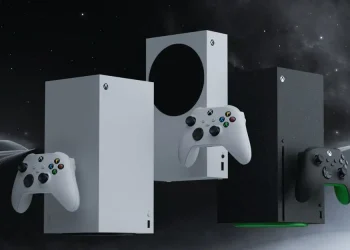
Console players also have options to enhance performance. Many systems offer performance and quality modes that trade higher visual fidelity for smoother frame rates or vice versa. Choosing a performance-focused mode typically boosts responsiveness, which is especially helpful in fast-paced matches where every split-second decision matters. Some players also find that temporarily clearing cache or restarting the console can eliminate minor hiccups or stuttering.
Finally, network stability plays a role even if your hardware is optimized. A strong, consistent internet connection minimizes latency and packet loss that can make the game feel sluggish or unresponsive. Wired connections often outperform Wi-Fi in terms of reliability, though a strong wireless signal can still provide a solid experience depending on your setup.
Tweaking Fortnite settings to match your specific hardware and play style can be a simple way to improve your game without needing expensive upgrades. By balancing visual detail with performance priorities, most players can find a setup that feels smooth and responsive, letting them focus on battle strategy and enjoy the game to its fullest.