

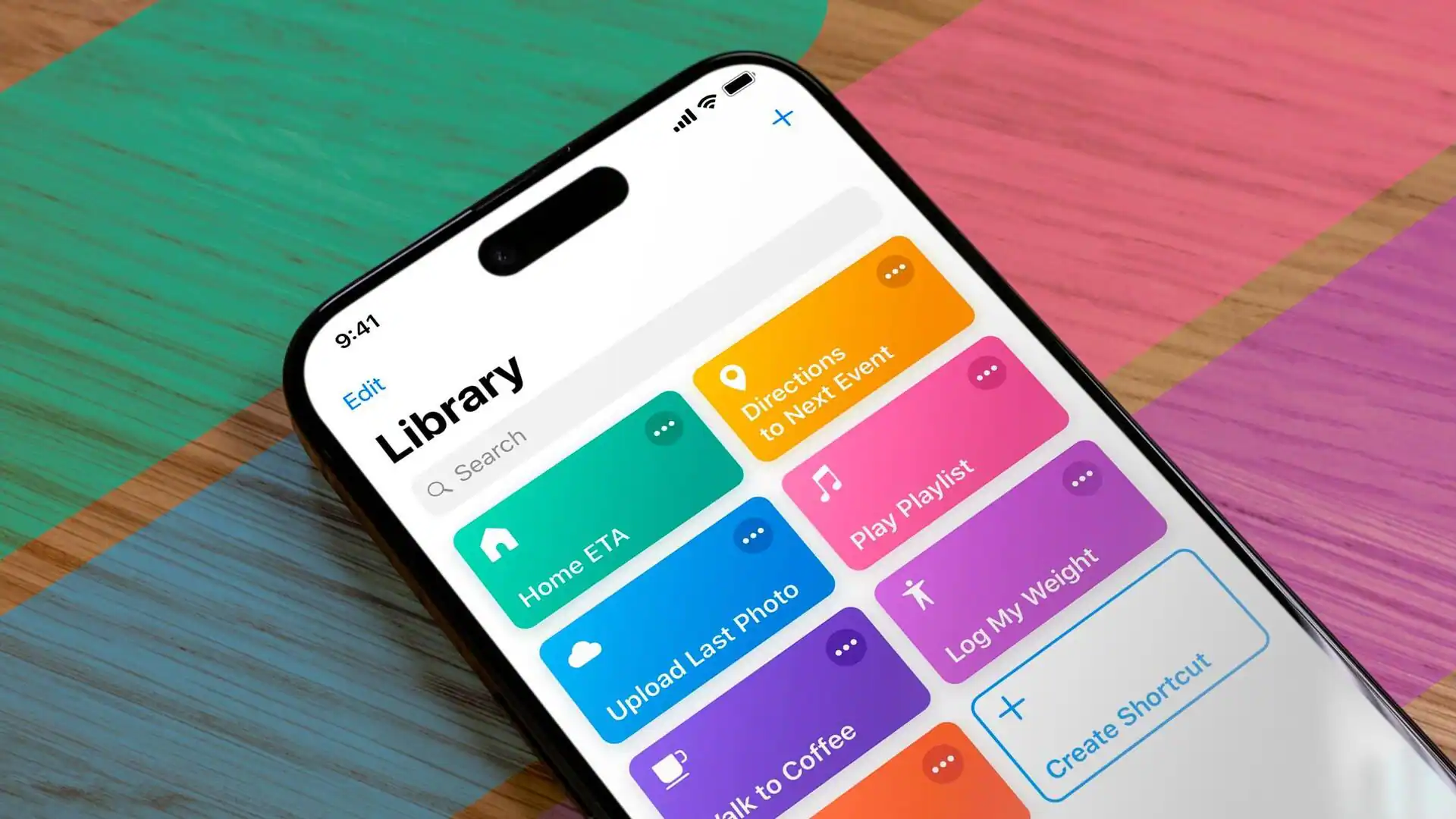

If you’ve treated Shortcuts like a simple automation toy — maybe a few quick tasks here and there — you’ve been missing out. With recent updates under Apple Intelligence, Shortcuts has quietly transformed into a powerful, flexible tool that can streamline many aspects of how you use your iPhone — from summarizing content to automating photo or document workflows.
What’s New: AI-Powered Automation
Starting with iOS 26, Shortcuts gained a major upgrade: you can now embed AI “actions” directly into custom workflows. Whether you choose on-device models, Apple’s private cloud compute, or an external AI (if supported), Shortcuts can analyze text, image, or document content — then act on it. That means with one tap you can:
-
Summarize a long article, document or PDF into a few key sentences.
-
Take a screenshot and have AI extract the main ideas, create a headline, and generate search-friendly tags for future reference.
-
Identify dishes from a food photo or screenshot and get a full recipe — ingredients, method, and nutritional info — automatically saved into Notes.
-
Recognize a random movie or TV-show clip from an image (or screenshot), then retrieve streaming availability or related details within seconds.
In other words: tasks that would take minutes of copying and pasting, switching apps, or googling — now happen instantly.
Real-World Use Cases: From Simple to Advanced
Because the tool is so flexible, you can tailor Shortcuts to your own needs:
-
Students or researchers: clipboard a chunk of text, then get summaries + highlights + ready-to-review notes.
-
Media hunters: screenshot a trailer or clip on social media, and get the name of the show/movie + where to watch.
-
Recipe collectors: see a dish on Instagram, tap a shortcut — get full recipe + save automatically.
-
Busy professionals: hand over repeated workflows (file naming, metadata extraction, note-taking) so you don’t waste time manually.
For many users, the difference feels like having a personal assistant tucked in your pocket.
Why Most People Under-Use It — And How That’s Changing
For years, Shortcuts felt like a “power-user only” tool — useful if you already knew how to script or automate. That kept many regular users away. But with AI integration, the barrier drops: you don’t need to know programming or complicated logic. You just describe what you want (or pick from pre-built “smart” shortcuts in the gallery), and the AI handles the rest.
That shift — from “macro builder for nerds” to “everyday automation assistant” — is what makes Shortcuts more relevant today than ever.
What to Watch Out For
-
Not all features work on all iPhone models. Older devices or some regions may lack full support for Apple Intelligence actions.
-
AI-powered shortcuts aren’t perfect. Summaries or recognitions can be inconsistent, especially for obscure media or unusual text/image content. It helps to double-check results when accuracy matters.
-
Over-automation can lead to clutter. Too many custom shortcuts or poorly designed workflows may slow down your device or make debugging harder.
So — Should You Give Shortcuts a Real Try?
If you’ve got a recent iPhone and spend time reading articles, saving media, or juggling files and notes — yes. Spending a little time to set up a few smart shortcuts can repay you over and over again. Once you see what’s possible — auto-summaries, instant info lookups, smarter media handling — you might wonder how you ever used your phone without it.
In short: Shortcuts isn’t just for power users anymore. With AI baked in, it’s a hidden productivity tool hiding in plain sight.